
Appendix S – Subscore Difference Functionality – Functional Flow Specification
1. Overview
This document explains the new “Subscore Difference” functionality introduced in FastTest.
For selected subscores, instead of summing item scores, the system will calculate the absolute difference between the scores of two specific items. This is useful for measuring contrasts, such as strength vs. weakness between two skills or conditions.
2. Business Requirement
For a given subscore:
- A new option is available:
“Calculate as a difference between two items (only two items allowed).” - When this option is selected:
- The subscore must be linked to exactly two items.
- On save, the system enforces that there are only two items in that subscore.
- During test scoring, the subscore value is calculated as the absolute difference of the two item scores, instead of the sum.
- Example:
- Item 1 score = 5
- Item 2 score = 2
- Subscore Difference = |5 − 2| = 3
This behaves like any other subscore in terms of reporting and exports, but the calculation logic is different.
3. Configuration in the Authoring UI
3.1 Location of the Option
- The configuration is done at the Subscore level, not at the Test level.
- Each subscore can individually decide whether it is:
- A normal subscore (sum or standard behaviour), or
- A difference subscore (difference between two items).
3.2 New Subscore Option
Within the subscore definition screen (in the Astra workspace):
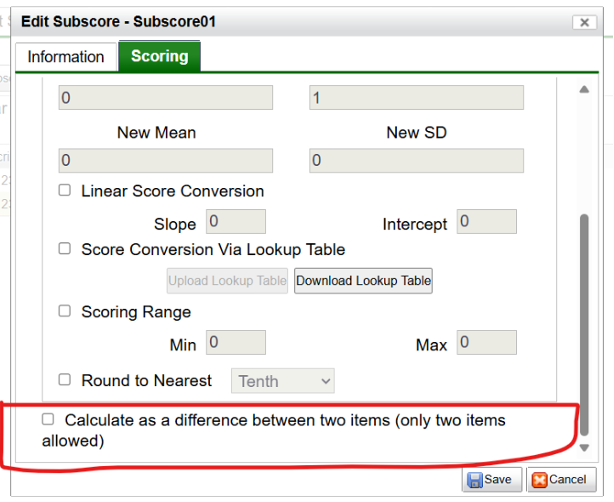
- A checkbox is available:
- Label: Calculate as a difference between two items (only two items allowed).
- When this checkbox is:
- Unchecked:
- The subscore behaves as a standard subscore (e.g. sum of item scores).
- Checked:
- The subscore is treated as a Difference Subscore.
- Unchecked:
3.3 Item Selection Rule
For a Difference Subscore:
- The author must select exactly two items in that subscore.
- On Save, the system validates:
- If fewer than 2 items are mapped ⇒ Error (save is not allowed).
- If more than 2 items are mapped ⇒ Error (save is not allowed).
- The subscore configuration can only be saved when there are precisely two items.
4. Scoring Logic During Test Delivery
4.1 When the Examinee Completes the Test
For each examinee, when test scoring is performed:
- For all normal subscores:
- The calculation remains unchanged (for example, sum of item scores, and any existing rules).
- For each Difference Subscore:
- Retrieve the raw scores of the two configured items.
- Compute the absolute difference:
- Let Item A raw score = RA
Item B raw score = RB
Difference Subscore (raw) = |RA − RB| - Store this as the subscore’s raw value.
4.2 Raw vs Scaled Score
- For Difference Subscores, the difference is calculated based on raw item scores, not based on scaled scores or lookup tables.
- Example:
- Item 1 subscore (raw) = 5
- Item 2 subscore (raw) = 3
- Total subscores (raw) = 8 (standard raw sum, if needed elsewhere)
- Scaled score of Item 1 = 15 (from lookup table)
- Scaled score of Item 2 = 9 (from lookup table)
- Total scaled subscore = 24
- Subscore Difference (used in reports) = |5 − 3| = 2 (based on raw scores
5. Display in UI and Reports
The Difference Subscore is treated as a regular subscore from the perspective of where it appears; only the calculation is different.
Per the ticket and comments:
- It should be possible to insert in the examinee report, like any other subscore.
- It should also appear in exports like any other subscore.
5.1 Examinee Result Table (After Completing the Test)
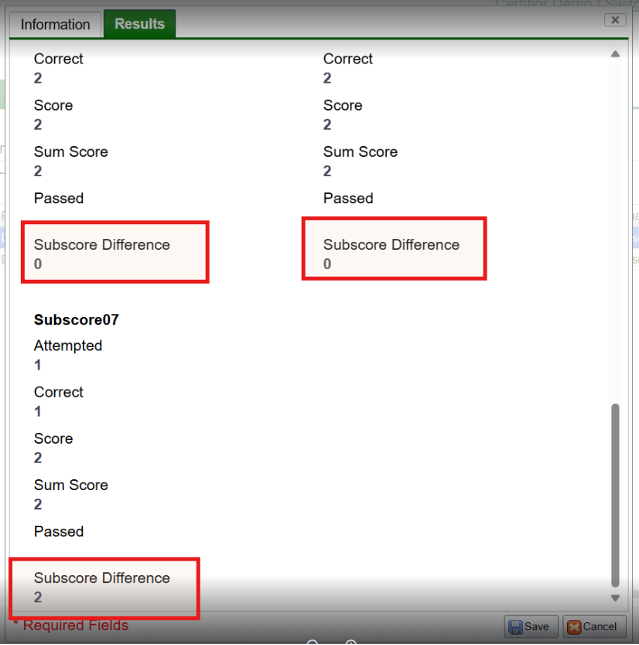
- Where subscore results are shown after the examinee completes the test:
- Difference Subscores appear in the list of subscores.
- The value shown is the Difference Subscore (raw), computed as |Item1 − Item2|.
- The layout is consistent with other subscores; if additional columns are needed (e.g., Raw, Scaled, Diff), they follow the agreed design.
- Result / examinee page:
5.2 Test Scheduler / Examinee Detail Screens
- In the test scheduler and examinee detail views:
- Difference Subscores are displayed similarly to other subscores
- If an additional column is used for “Diff” in any table, it appears alongside other score columns.
5.3 Examinee Data Report & Score Conversion Table
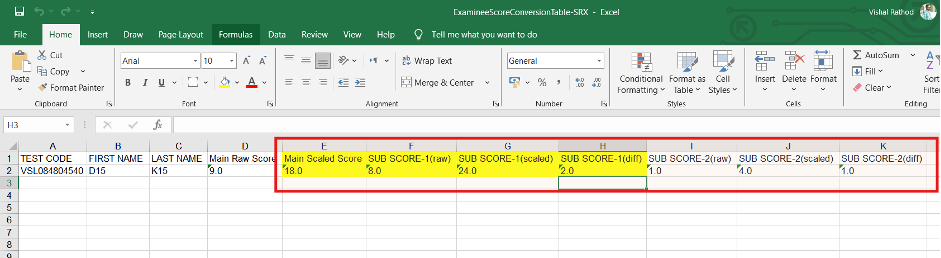
- Difference Subscores appear in:
- Examinee Data Report
- Examinee Score Conversion Table

2. They are available just like other subscores:
- They can be inserted into reports.
- They show up in exports and data extracts.

3. For these tables:
- Most subscores will show traditional columns such as Raw and Scaled.
- For Difference Subscores, two options exist (as discussed):
- Show Raw, Scaled, and Diff (3 columns), or
- Replace the Scaled column with Diff for those few subscores to keep all subscores at 2 columns.
3. Per the client feedback, it is acceptable if most subscores show 2 columns, and only the Difference ones show 3, or if the Scaled column is replaced with Diff to maintain two columns.
6. Client-Specific Scope / Constraints
- The feature is intended for NTE:
This should only be NTE, and please make sure the client is set to NTE for all tests.
2. The functionality is subscore-level only, not test-level:
It definitely needs to be at the subscore level, not test level.
3. The ticket focuses only on raw scores for the difference:
Lookup tables are for a test, not for an item. This ticket is only for raw scores on a given pair of items.
7. End-to-End Functional Flow (Step by Step)
Step 1 – Author Configures a Difference Subscore
- Open the test and go to the Subscores configuration.
- Create or edit a subscore.
- Map two items to this subscore (the two items between which the difference will be measured).
- Check the option:
“Calculate as a difference between two items (only two items allowed).” - Save the subscore:
- The system validates that exactly two items are assigned.
- If validation fails (not exactly 2 items), an error is shown and the subscore is not saved.
Step 2 – Examinee Takes the Test
- The examinee answers all items, including the two items linked to the Difference Subscore.
- When the test is submitted, the system computes:
- 1. Standard test score and normal subscores.
- 2. For the Difference Subscore:
- 1. Fetch raw scores of the two configured items.
- 2. Compute Difference Subscore (raw) = |Score(Item 1) − Score(Item 2)|.
Step 3 – Scores Are Displayed & Exported
- On the examinee results page (after test completion):
- The Difference Subscore appears in the subscore section with its computed value.
- On the test scheduler / examinee details screens:
- The Difference Subscore is visible among other subscores, following the agreed column layout.
- In reports (Examinee Data Report, Examinee Score Conversion Table):
- 1. Difference Subscores are included and can be selected/used like any other subscore.
- 2. The value shown for the “diff” column is based on raw scores, as defined above.
- In exports:
- Difference Subscores are present in the data extract, enabling downstream analysis.
8. Worked Example for the Client
Consider a subscore named “Left-Right Score Difference” configured as a Difference Subscore with two items:
- Item A (Left side task)
- Item B (Right side task)
For an examinee:
- Item A raw score = 5
- Item B raw score = 3
- Scaled scores (from lookup table):
- Item A scaled = 15
- Item B scaled = 9
System behaviour:
- Difference Subscore (raw) = |5 − 3| = 2
- This value (2) is displayed in:
- Examinee results screen
- Examinee detail view
- Examinee Data Report and Examinee Score Conversion Table
- Data exports
The difference is not computed on scaled scores (15 and 9); the ticket explicitly specifies that this feature is based on raw scores only.